Calendar & Channel Sync
Part of the guide: Calendar sync
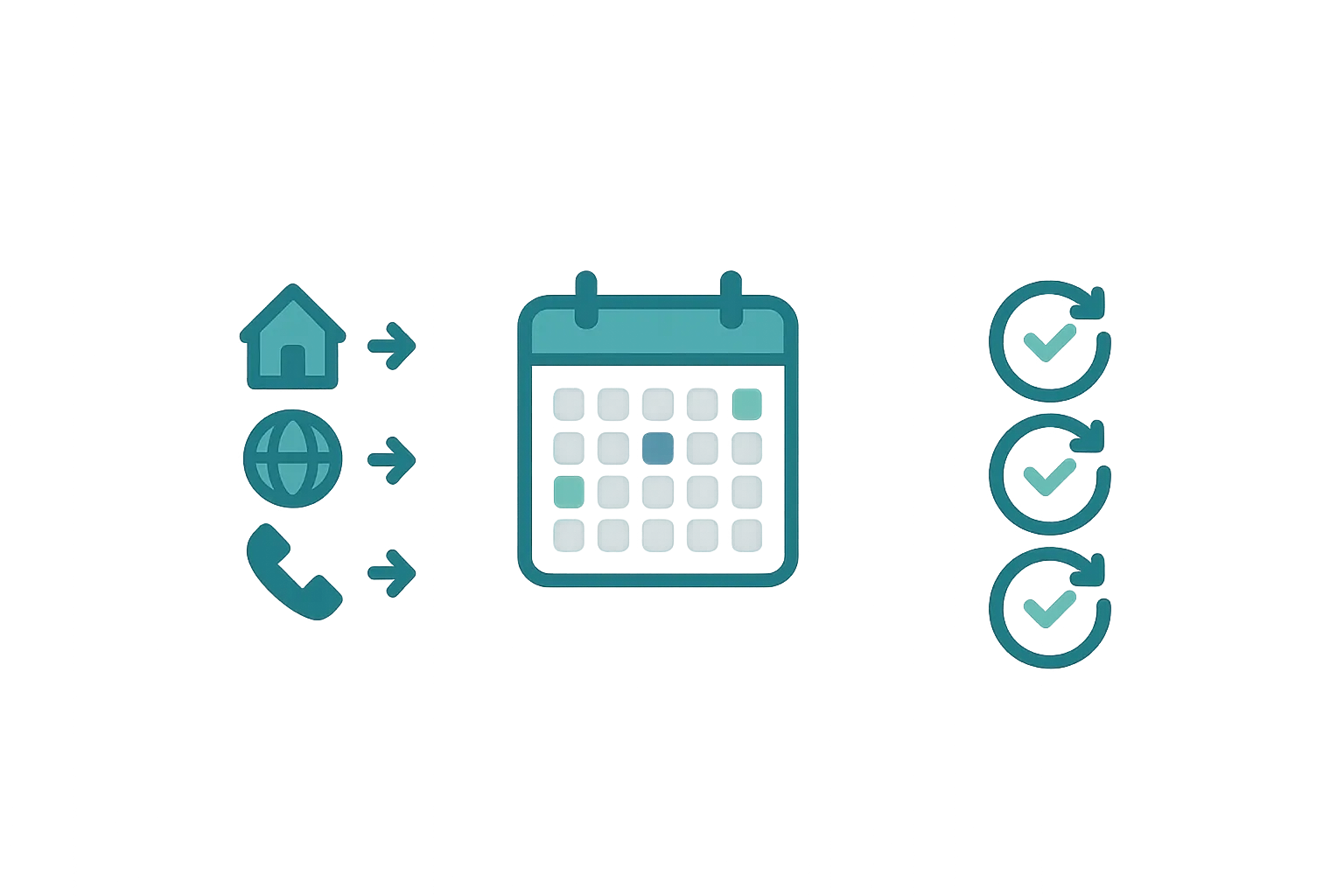
Calendar sync — One calendar for all your bookings. Publish one availability feed your channels can read, and cut down on double-bookings.
The double-booking problem
If you list on multiple platforms — Airbnb, Booking.com, your own website — keeping availability in sync is a constant worry. A guest books on Airbnb while another books the same dates on your website. Now you have a problem, an awkward conversation, and a potential bad review.
Airflow helps by consolidating all bookings into one calendar and publishing a single availability feed that your other platforms can import. Note that OTAs like Airbnb and Booking.com refresh imported iCal feeds on their own schedule (typically every few hours), so cross-platform availability is kept current on their refresh cycle rather than instantly — but you finally have one authoritative calendar feeding them all.
How calendar sync works
Bookings flow in
Every booking that enters Airflow — whether from a forwarded OTA email, a direct website booking, or a manual entry — is added to your unified calendar. Each booking shows:
- Guest information (without exposing names on shared feeds for privacy)
- Check-in and check-out dates
- Source platform (Airbnb, Booking.com, Direct, etc.)
- Booking status (confirmed, pending, cancelled)
- Number of nights and guest count
- Booking value
Availability flows out
Airflow generates iCal feeds for each resource that you can import into any platform:
- Full feed (for your own use) — includes booking details like provider, confirmation code, nights, guest count, and value
- Blocked feed (for sharing with OTAs) — shows only “Not available” blocks, keeping your booking details private
These feeds also include:
- Manual availability blocks (maintenance periods, owner stays)
- Turnaround/buffer days between bookings
Availability flows in
Paste another calendar’s iCal link under Bookings > Import. Airflow reads it every hour and blocks the dates it has no booking for, so a booking taken on Airbnb or Booking.com closes those dates on your own page too.
Google Calendar & Outlook integration
Connect Google Calendar or Outlook Calendar and choose a calendar for each listing. Press Sync now in the portal and Airflow writes your bookings into it as events, each with:
- Summary: “Booked — [Platform] ([Confirmation Code])”
- Description: guest count, number of nights, booking value
- Correct start and end dates
Airflow remembers which bookings it has already written, so a changed booking updates its event and does not add a second one.
Two things to know. The sync runs when you press Sync now, not on a schedule. And events already in your Google or Outlook calendar do not block dates in Airflow: to block those dates, paste that calendar’s private iCal address under Bookings > Import, and Airflow reads it every hour.
Multi-resource management
If you manage multiple properties, each resource gets its own:
- Calendar view in the portal
- iCal feed URL (full and blocked versions)
- Google/Outlook calendar connection
Availability is managed per-resource, so there’s no cross-contamination between properties.
Setting up calendar sync
- iCal feeds — available immediately. Copy your feed URL from the resource settings and paste it into your OTA’s calendar import. Then paste each channel’s own calendar link under Bookings > Import, so their bookings block your dates
- Google Calendar — connect from the Connections page, select which calendar to use, then press Sync now to write your bookings into it
- Outlook Calendar — same process as Google Calendar
iCal feeds you paste into OTAs are pull-based: those platforms re-read your feed on their own refresh schedule. Airflow reads the links you paste in every hour. Google and Outlook calendars are written when you press Sync now.
Buffer days
You can configure turnaround days between bookings — time for cleaning, maintenance, or simply a breather. These buffer days appear as blocked on your calendar feeds, preventing back-to-back bookings that don’t leave enough preparation time.
Related help articles
- Your Connected Ecosystem — All your tools in one place
- Automated Guest Communications — Stay in touch automatically
- Your Custom Booking Website — Accept direct bookings
Previous: Automated Guest Communications Next: More help articles coming soon