Your Airflow bookings in Google Calendar
Connect your Google account, choose a calendar for each listing, and Airflow writes your bookings into it as all-day events. To have dates you block in Google close the same dates in Airflow, add that calendar's secret iCal address in the Import tab and Airflow reads it every hour.
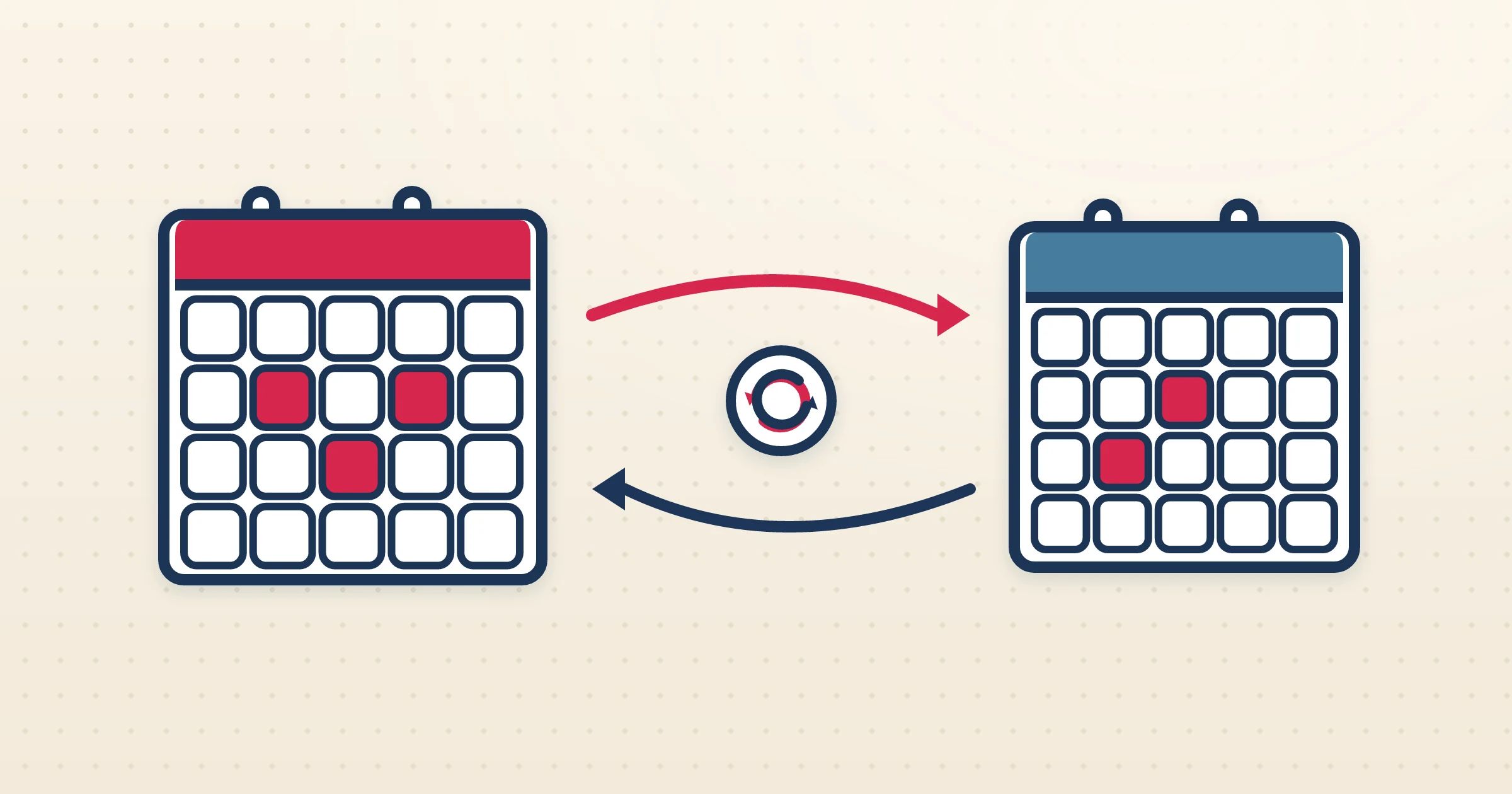
If you already live in Google Calendar, your bookings should be there too. Connect Google to Airflow and choose which calendar each listing uses. Bookings from every channel, your direct guests and home swaps are then written into that calendar as events, each named with the guest and the channel. The other direction uses the calendar link: paste the calendar's secret iCal address into Airflow and anything you block in Google, such as a personal stay, maintenance or an owner visit, is blocked in Airflow as well.
How it works
- 1
Connect your Google account
Authorise Google in your Airflow portal. It is the same Google connection Airflow uses for Gmail and Google Sheets, one Google account for each organisation, and you can disconnect at any time.
- 2
Choose the calendar for each listing
Pick the Google calendar each listing should use. A dedicated calendar for each listing keeps bookings apart from your personal events.
- 3
Send your bookings to Google
Press Sync now in your portal and Airflow adds every confirmed and pending booking that is not yet in the calendar as an all-day event, with the guest name and the channel it came from.
- 4
Bring Google blocks into Airflow
In Google Calendar settings, copy the calendar's secret address in iCal format and paste it in the Import tab of your Bookings page. Airflow reads it every hour and blocks those dates.
Bookings out, blocks in
The two directions work in different ways. Out: Airflow writes each booking into your Google calendar as an event when you sync, so the calendar you look at every day shows which nights are sold and who is arriving. In: Airflow reads the calendar's iCal address every hour, and a date you block in Google becomes a blocked date in Airflow, so your booking page cannot sell it. Use the secret iCal address, not the public one: a calendar shared as free or busy only returns an empty feed.
A calendar for each listing
If you run more than one listing, you do not want every booking landing on a single crowded calendar. Airflow lets you choose a calendar for each listing, so each one has a clean view that you and your team can open on its own.
What to expect
Bookings are added to Google when you press Sync now; it is not a live mirror. When Airflow reads the calendar back through its iCal address, every event on it blocks its dates, which is the reason to give each listing its own calendar. For Outlook users, Airflow offers the same through Outlook Calendar sync.
From the blog
Guides for this setup
Why Your iCal Sync Keeps Breaking — and What to Do About It
Double bookings, stale calendars, and missing reservations. iCal sync is the glue holding most booking businesses together — and it's failing. Here's why, and a better approach.
Why does my iCal sync keep breaking? →
How to Find Your Airbnb iCal Link and Sync It with Other Calendars
Where the Airbnb calendar link is, how to paste it into VRBO, Booking.com or Google Calendar, how to import their calendars back, and what an iCal link can and cannot carry.
Where is my Airbnb iCal link, and how do I sync it? →
Your Calendar Still Shows a Cancelled Booking
A guest cancelled on the channel, but the dates are still blocked everywhere else. Why feeds leave stale blocks behind, and how to clear them.
Why does my calendar still show a cancelled booking? →Common questions
Is Google Calendar sync two-way?
Both directions are covered, in two steps. Airflow writes your bookings into Google Calendar as events when you sync, and it reads the calendar's secret iCal address every hour to block the dates you have blocked in Google.
How is this different from an iCal feed?
An iCal feed gives other platforms your blocked dates. Google Calendar sync writes each booking into your own calendar as an event, with the guest and the channel, so you can see who is arriving.
Can I sync different listings to different calendars?
Yes. You choose the Google calendar for each listing, so each one stays separate.
How often does it sync?
Bookings go to Google when you press Sync now in your portal. Dates blocked in Google are read every hour through the calendar's iCal address, once you have added it in the Import tab.
Related questions, answered
See your bookings in Google Calendar
Connect Google Calendar to Airflow, choose a calendar for each listing and sync your bookings into it. Add its iCal address and the dates you block in Google are blocked in Airflow too.
Start with Airflow See plans and pricing